
Installing CMS 10.6 Connector Add-on
- System administrators must install the CMS 10.6 Oxygen Web Service for the Ingeniux CMS site instance. See Installing CMS 10.6 Oxygen Web Service for details.
- Users must install Oxygen XML Editor 23.0+ on their authoring client. See the Oxygen XML Editor website
for details.ImportantFor MacOS Oxygen XML Editor installations, the Ingeniux CMS Connector add-on requires the Oxygen XML Editor/Author/Developer folder to reside directly under the Applications folder. The connector add-on also requires oxygen.sh, oxygenAuthor.sh, and oxygenDeveloper.sh to reside within the Oxygen XML Editor/Author/Developer folder.
Install the Ingeniux CMS Connector 1.6.4+ add-on in your Oxygen XML Editor 23.0+ application to enable DITA authoring with the Oxygen Desktop Plugin. This connector version is compatible with all CMS 10.6 builds. After installation, you can check for and install subsequent updates to the connector.
To install the Ingeniux CMS Connector add-on:
- Click from the menu bar.
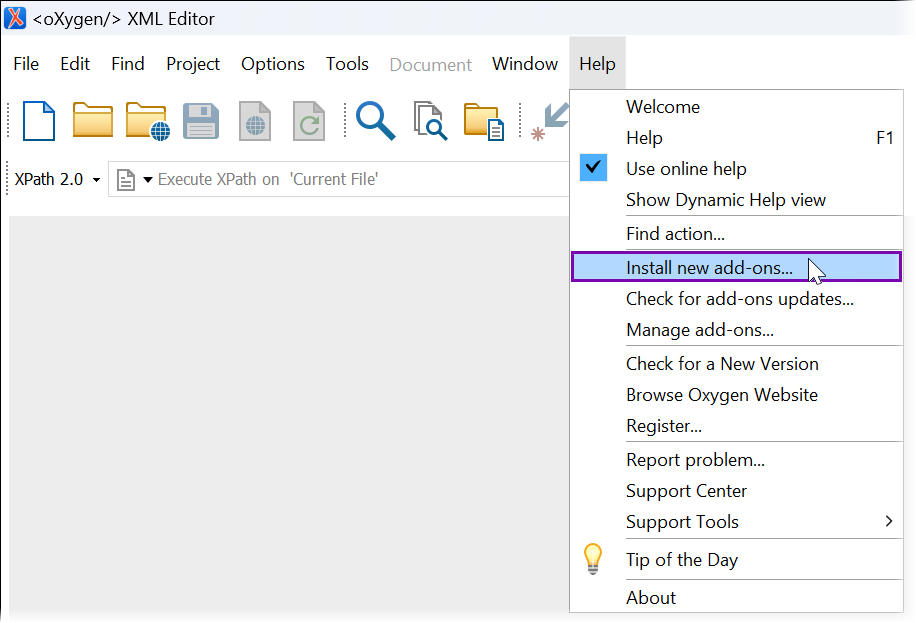 The Install new add-ons dialog displays.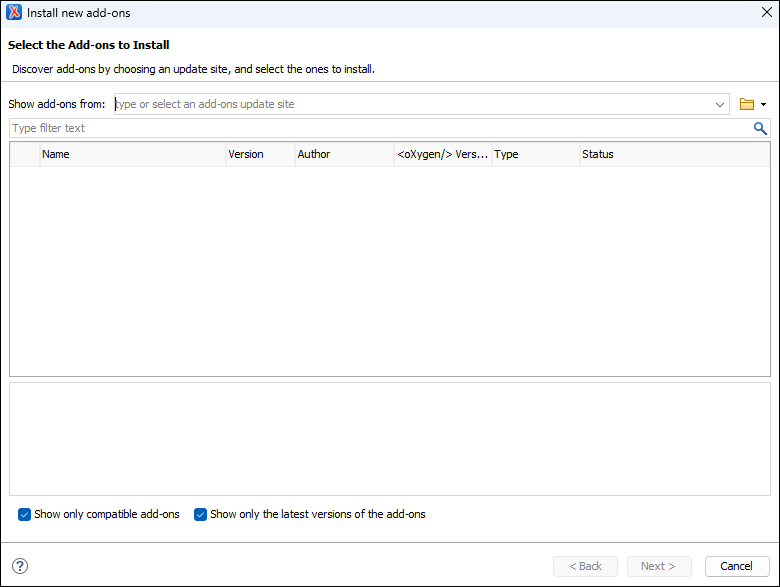
- Copy and paste the following URL in the Show add-ons from field:
https://oxygenplugin.ingeniux.com/plugins/pluginfeed.xmlThe Ingeniux CMS Connector add-on displays in the list.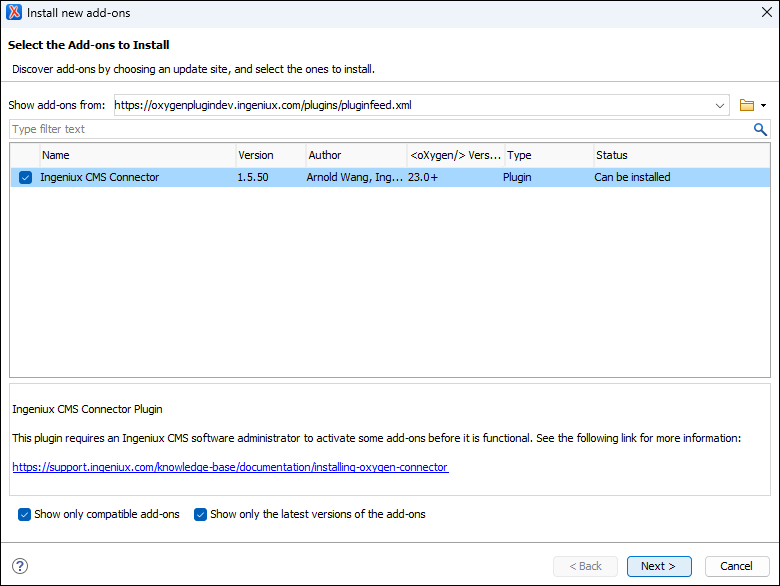
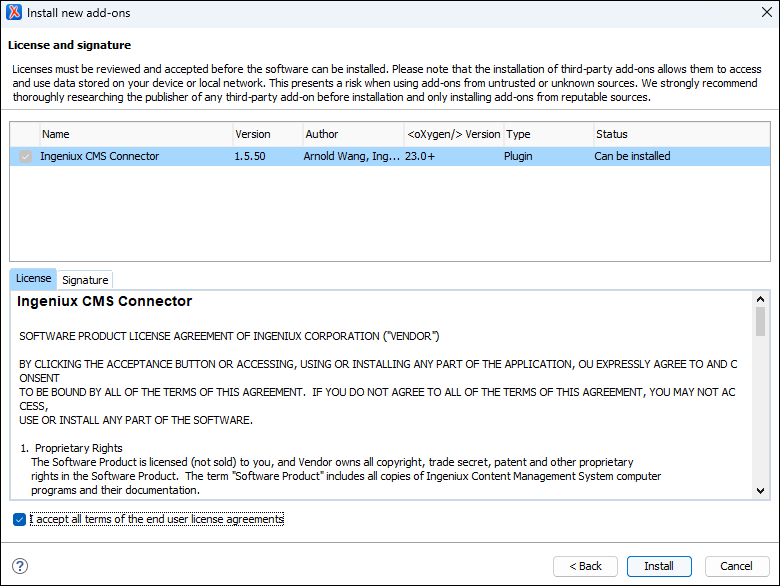
- Review and accept the license agreements in the License and
Signature tabs by selecting the I accept all terms of
the end user license agreements checkbox.
- Open the Oxygen XML Editor.The interface now includes:
- New toolbar buttons: Check Out, Check
In, and Insert Topic Reference.

- The Ingeniux CMS pane.
- the Ingeniux DITA References pane.
- New toolbar buttons: Check Out, Check
In, and Insert Topic Reference.
Task Troubleshooting: If you encounter errors or issues:
- Review the installation steps to ensure you installed the connector properly and provided the correct plugin feed URL.
- Verify with a system administrator that the Oxygen Web Service is updated to the latest version compatible with your CMS version.
- If you still encounter errors, uninstall and reinstall the Ingeniux CMS Connector in Oxygen XML Editor.
- The connector will not connect to your CMS instance until you install Web Launcher or configure connection settings manually.
Next Steps:
Note
For subsequent Ingeniux CMS Connector add-on updates, see Installing Add-on Updates for update steps.
- Install CMS 10.6 Web Launcher for Windows to configure the Web Launcher and sync CMS connection settings on Windows.
- Install CMS 10.6 Web Launcher for Mac to configure the Web Launcher and sync CMS connection settings on Mac.
- Configure CMS 10.6 connection settings manually without installing
the Web Launcher.
We recommend installing the Oxygen Desktop Plugin with Web Launcher for automatic CMS 10.6 connection configuration.