
Checking In Assets and Folders
Checking in an asset creates a new version that includes all changes made since checkout. If you mark the new asset version for publish, the changes take effect with the next publish operation. The asset becomes unassigned from you after check-in.
Checking in an asset or asset folder registers any name changes you make using the Rename action.
To verify an item's check-in status, click its info icon  in the top-right corner of the Assets pane and review the
Checked Out value.
in the top-right corner of the Assets pane and review the
Checked Out value.
- Select the checked-out asset or asset folder, then click Check
In
 in the toolbar menu.NoteTo check in a folder and its children simultaneously, right-click the folder and select in the Asset Tree context menu.If the item has multiple publishing marking, the Check in Pages to Be Published dialog displays available publishing targets and profiles.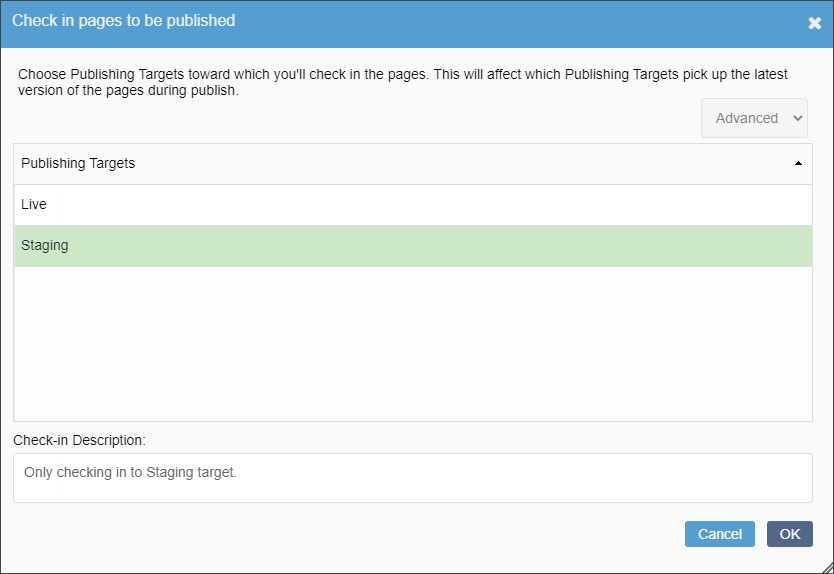
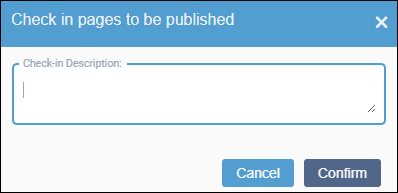
- Optional: Enter optional notes about your changes in the Check-in
Description field. This field displays either within Check in
Pages to Be Published dialog or its own separate dialog.NoteThe Check-in Description dialog does not display if administrators disable the Show Comment Dialog on Check In setting. The description is required if administrators enable the Require Check In Comments setting.
The CMS checks in and unassigns the item from you, and the item's icon color changes from blue to black in the Asset Tree. For assets, a new version is created and displays as the latest version number in the item's History tab.