
Reports
A report is a query that searches your site content and returns a list of items that match the conditions you set. Behind the scenes, each report uses XPath to search the reference file and other XML files where the CMS stores data. Reports search your entire site at once and can combine more than one condition in one query, such as pages every page that uses a particular schema and changed after a certain date. Rerun a report anytime to retrieve up-to-date results.
Use reports to answer common site management questions, such as:
- Which pages are still assigned to a user who no longer works on the site?
- Which pages are checked out or marked for publish?
- Which pages use a specific schema?
- Which pages were recently created or changed?
Reports also help you share what you find. Schedule a report to run automatically and send the results to the users who need them, or export the results to a Microsoft Excel spreadsheet.
Report Types
Ingeniux CMS includes two types of reports:
- Pre-defined reports
- Built-in reports that answer common questions, such as which pages are assigned to a specific user or group. Run them as they are, or use them as a starting point for custom reports.
- Custom reports
- Reports you create to answer questions specific to your site. Custom reports can be simple, parameterized, or advances.
Reports Manager
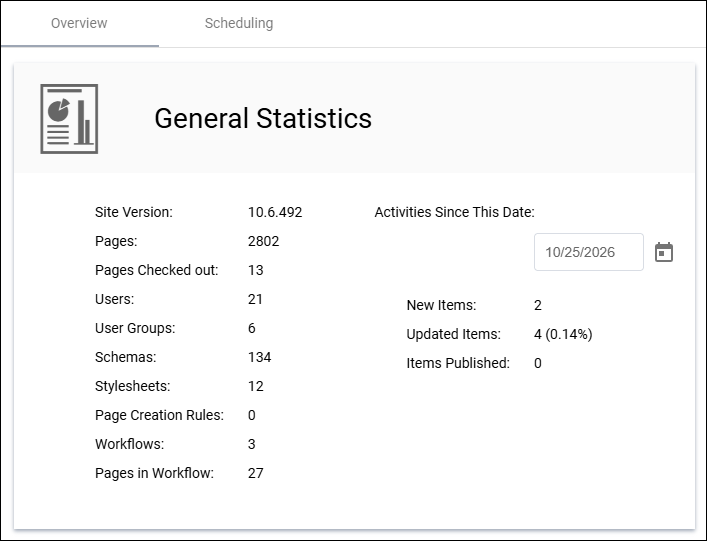
Administrators work with reports in Reports Manager. To open Reports Manager, click . Reports Manager has two views:
- Overview
- View general site statistics.
- Scheduling
- Start and stop the service that runs scheduled reports.
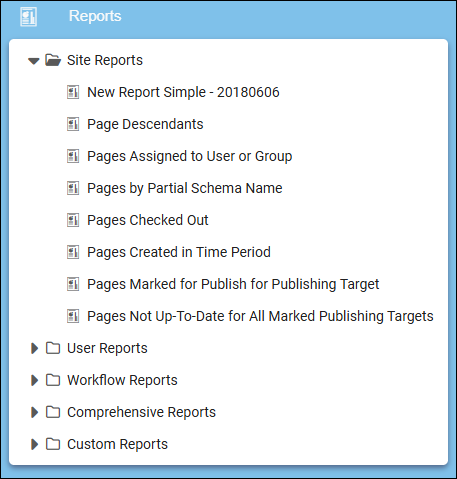
To find a report, expand the folders in the Reports menu in the left Administration pane. The menu organizes reports into the Site Reports, User Reports, Workflow Reports, Comprehensive Reports, and Custom Reports folders. Any folder can contain both pre-defined and custom reports, and you can create a custom report in any folder.
In Reports Manager, administrators can:
- Run pre-defined and custom reports.
- Create custom reports.
- Schedule reports to run at set times and send the exported results to selected users or groups.
- Export report results to a Microsoft Excel spreadsheet.
For sample queries, see XPath Query Examples for Reports.