
Email Configuration
The CMS email interface supports the standard SMTP mail service.
- Navigate to Administration > System Options > CMS > Email.
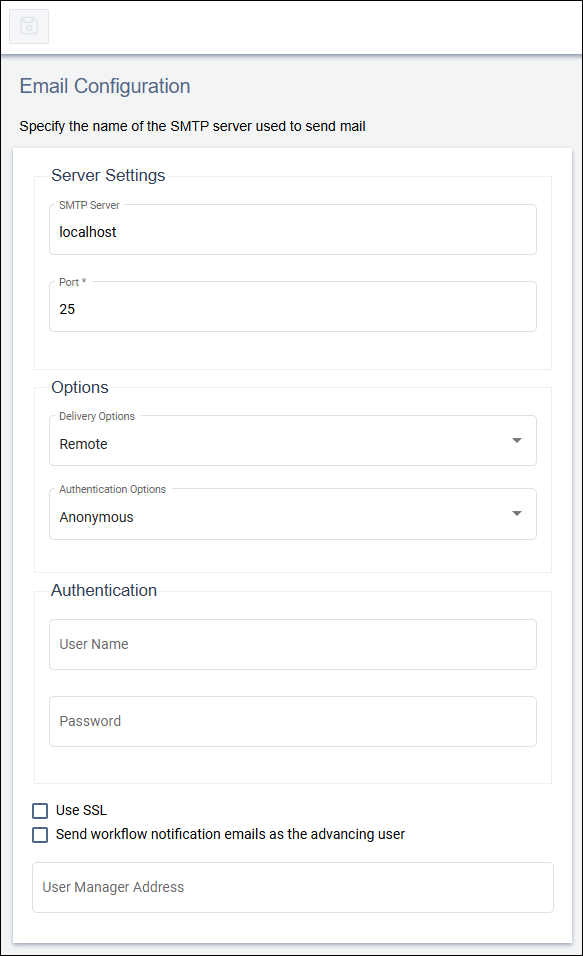
- Configure Server Settings:
Field
Description
SMTP Server Enter the name or IP address of the host used for SMTP transactions. Port number picker Enter the port used for SMTP transactions. Default: 25
- Configure Delivery and Authentication Options:
Field
Description
Delivery Options drop-down list Choose how to handle outgoing email messages. You can send mail to a local SMTP service configured on the same server as the CMS or to a remote SMTP server.
Select an option:
- Remote
- Default option. Remote SMTP server.
- Local
- Local SMTP service configured on the same server as the CMS.
Authentication Options drop-down list Select an option: - Anonymous
- Default option.
- Basic
Basic authentication sends user names and passwords across the network in clear text.
CautionSending unencrypted user names and passwords increases the risk of security breaches.We recommend to only use this option when the Use SSL checkbox is selected.- NTLM
- Windows Challenge/Response ( Microsoft NTLM) authentication sends email messages using the CMS website application pool account. Typically, this is the network service account.
- Configure Authentication credentials:
Field
Description
User Name Enter the user name of the account that you use to connect to the SMTP server. Password Enter the password of the account that you use to connect to the SMTP server. - Configure SSL and email settings:
Field
Description
Use SSL checkbox Select this checkbox to have the CMS encrypt the connection with Secure Sockets Layer (SSL). If your SMTP server does not require SSL, keep the checkbox cleared.
Default: checkbox cleared
Version Notes: CMS 10.6.389The CMS local-membership.config@requireSSLForPasswordResetsetting is set to true by default. A system administrator may need to update this file using CMS 10.6 Configuring Password Rules steps.Send workflow notification emails as the advancing user checkbox Select this checkbox to send workflow notification emails from the advancing user's email address rather than from the user manager. Default: checkbox cleared
User Manager Address Enter the address of your user manager. This field supports either the email address on its own (e.g., john.smith@ingeniux.com) or the display name with the email address (e.g., "John Smith"<john.smith@ingeniux.com>). - Click the Save button
 in the top-left corner of Email Configuration to save your changes.
Task Troubleshooting: Compatibility with other SMTP servers depends on how Microsoft and other SMTP servers implement these standards. Incompatibilities may exist.