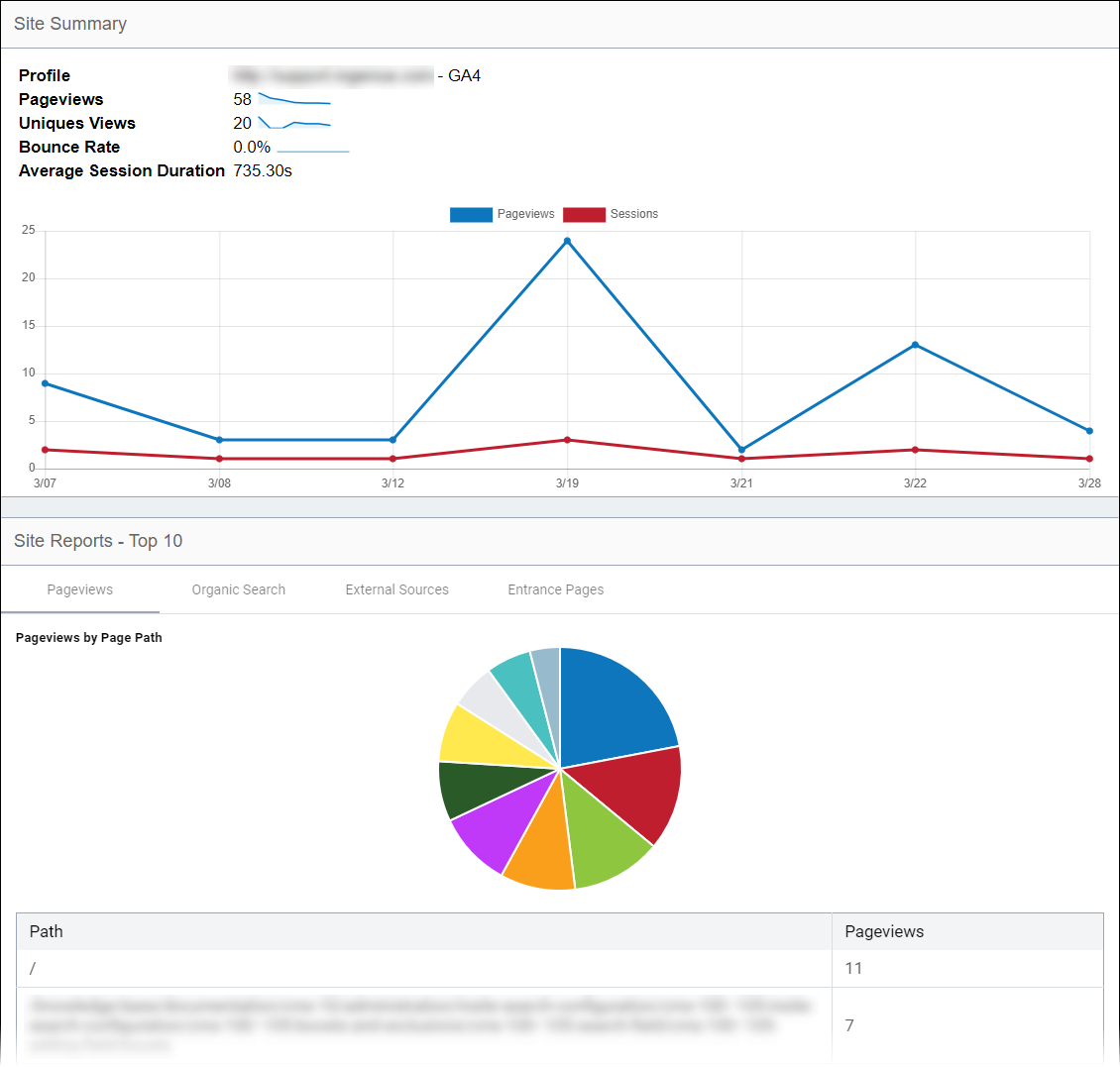
Website Analytics
Website analytics monitors your site's performance by gathering site-wide and page-by-page visitor statistics. A page analysis report includes information about that page, such as number of visits and points of entry. Analytics helps you understand where your website traffic is coming from, which pages on the site are most popular, and what changes need to make to enhance the site.
- Website Analytics (e.g., Google Analytics) is the focus of this topic.
- Microsoft's Analytics is a query tool within Application Insights, which developers use to monitor the DSS website for performance anomalies. Application Insights offers code-level telemetry.
- InSite Search Analytics is a type of search configuration within Ingeniux CMS that helps to track users' search activity.
Google Analytics is the data provider for most Ingeniux customers. The Analytics app combines Ingeniux CMS collaboration capabilities with Google Analytics to optimize your organization's web-based marketing efforts.
- Choose one of the following steps:
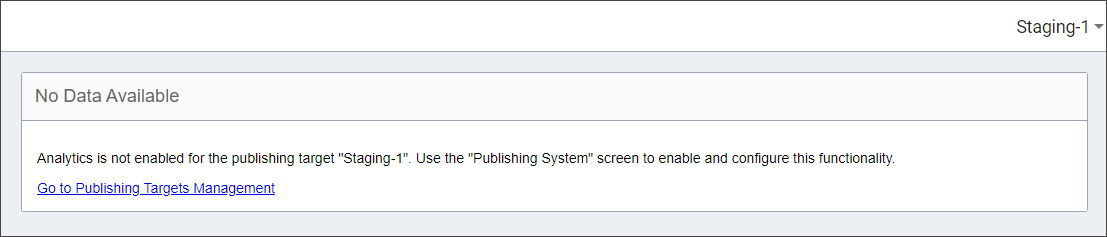
- If you have not configured Analytics, the No Data Available
message displays. See Analytics Settings to enable
Analytics.
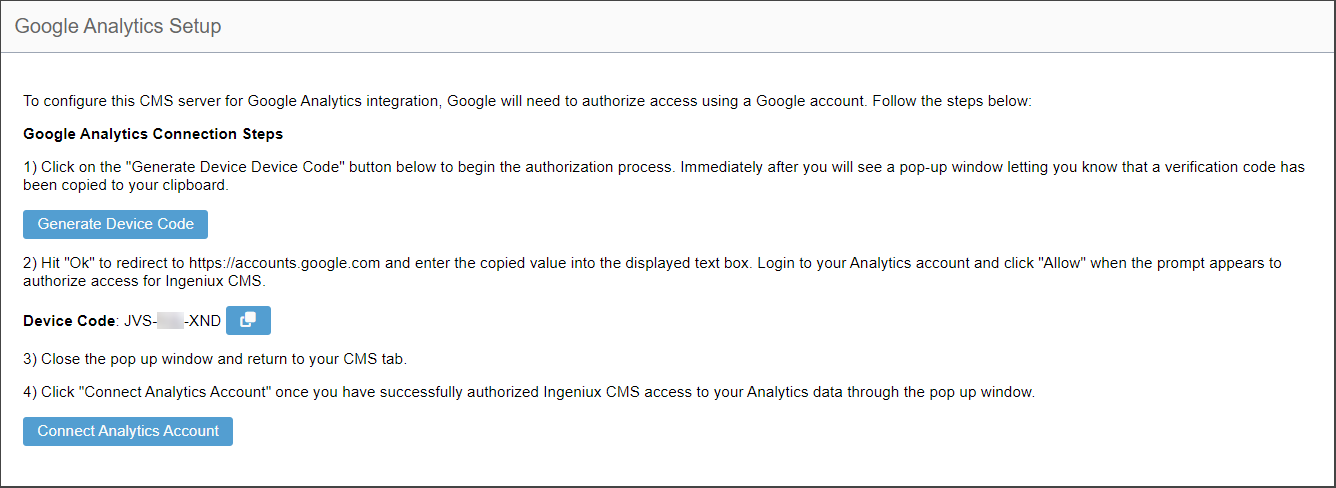
- If you have already enabled Analytics, the Google Analytics Setup
information displays, so continue to the next step.
- If you have not configured Analytics, the No Data Available
message displays. See Analytics Settings to enable
Analytics.
- Click Allow to permit Ingeniux CMS to
view Google Analytics data.
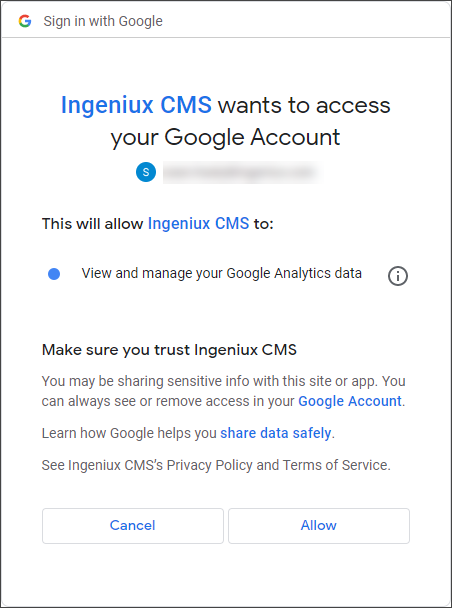 The Success! Device connected message displays.
 - Select a Google Analytics property from the Property drop-down list.
If your organization needs to create a Google Analytics property, see Add a new view for details.
ImportantCopy the remote access token before saving the property; it displays only once.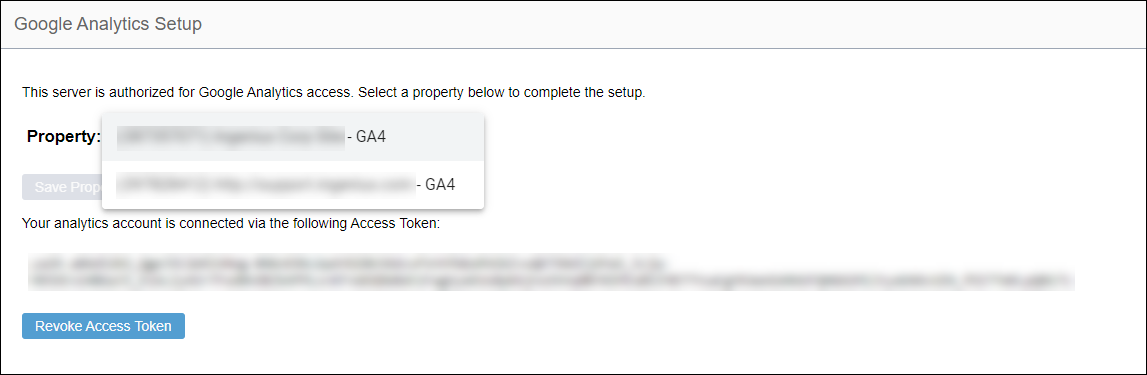
- Click Save Property.
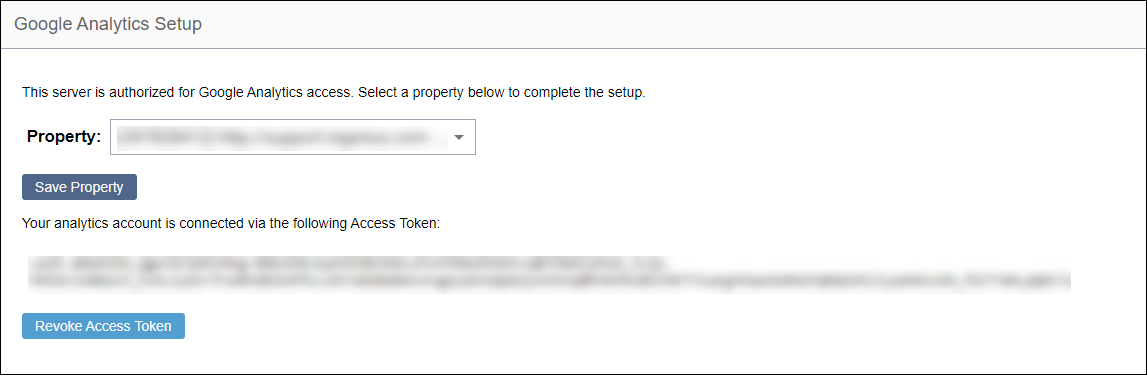
The Google Analytics Site Summary displays.