Global Exports


Use the Global Exports system option to add or remove global exports for navigations.
Note
See Global Exports for an overview of global exports, including an example.

Add Global Exports

To add a global export for navigation:
  1. Follow the step for your CMS version:

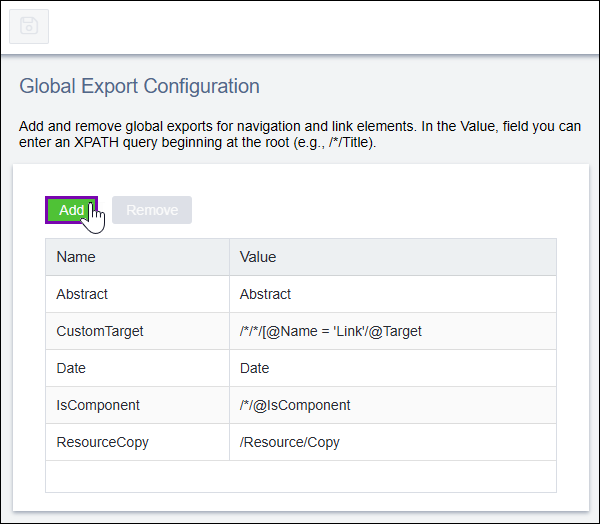
    Navigate to Administration > System Options > CMS > Publishing > Global Exports, then click Add.

    Navigation Exports

    The Add New Navigation Export dialog displays.

    Navigate to Administration > System Options > CMS > Publishing > Navigation Exports then click New.

    A new row displays in the table for the global export.
  2. Configure the fields for the new global export:

    Complete the fields in the Add New Navigation Export dialog, then click Confirm.

    FieldDescription
    NameName for the global export.
    ValueXPath expression for the global export.

    The global export displays in the table.

    Complete the fields in the new table row for the global export.

    FieldDescription
    NameName for the global export.
    ValueXPath expression for the global export.
  3. Click SaveSave Button in the top-left corner of the exports pane.

Remove Global Exports

Prerequisites: Before you remove a global export, verify that no page displays depend on the global export.

To remove a global export:
  1. Follow the step for your CMS version:

    Navigate to Administration > System Options > CMS > Publishing > Global Exports.

    Navigate to Administration > System Options > CMS > Publishing > Navigation Exports.

  2. Click the row of the global export you want to remove.
  3. Click Remove.

    The CMS removes the global export from the table.

  4. Click SaveSave Button in the top-left corner of the export pane.