
Updating Connector Add-On
- System administrators must update the Oxygen Web Service to the latest version compatible with their Ingeniux CMS site instance. See Updating Oxygen Web Service for details.
- Users must install Oxygen XML Editor 23.0+ on their authoring client(s). See the Oxygen XML Editor website for details.
- Users must install the Ingeniux CMS Connector add-on version compatible with their CMS
site instance.
- For CMS 10.6, see Installing CMS 10.6 Connector Add-on.
- For CMS CMS 10.3–10.5, see Installing CMS 10.3–10.5 Connector Add-on.
Check for and install Oxygen Desktop Plugin add-on updates as they become available
over time for Oxygen XML Editor. The latest compatible connector version for all CMS 10.6
builds is Ingeniux CMS Connector 1.6.4.
To check for and install the connector add-on update for the Oxygen Desktop
Plugin:
- Choose one of the following options:
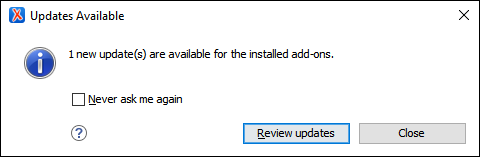
- If the Updates Available dialog displays, select
Review Updates to open the Manage
add-ons dialog.NoteIf the Enable automatic updates checking option is selected, which is the system's default, the Updates Available dialog displays when a new add-on update becomes available.
- Navigate to in the Oxygen XML Editor toolbar.
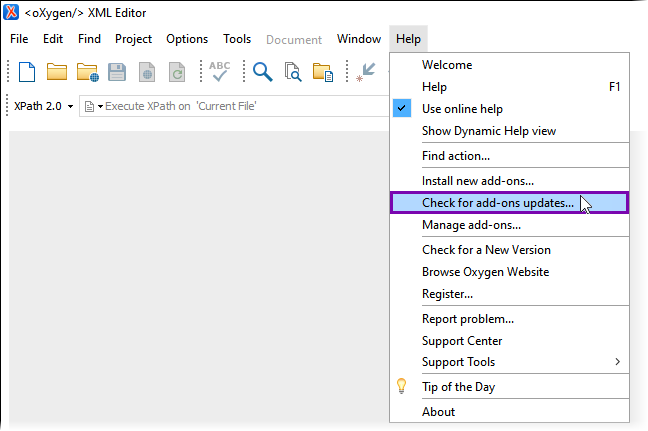
The Manage add-ons dialog displays and checks for new add-on updates.
- If the Updates Available dialog displays, select
Review Updates to open the Manage
add-ons dialog.
- Check the Version and installation Status
of the Ingeniux CMS Connector plugin.Your Oxygen Desktop Plugin's current version number displays in the Version column. If the add-on has a new version update available, the Status column displays Update available [version-number].NoteIf the Ingeniux CMS Connector add-on's Status displays as Installed, then your Oxygen Desktop Plugin is up to date with the latest add-on.
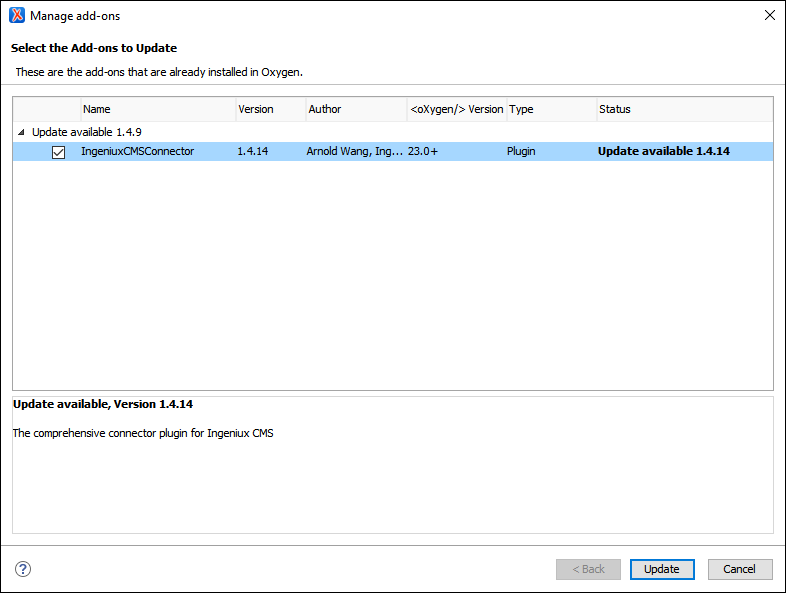
- If a new update becomes available, select the add-on and click
Update.TroubleshootingIf the Ingeniux CMS Connector plugin information does not display or if the version details seem inaccurate, see Troubleshooting Add-on Updates for details to troubleshoot and update the plugin feed URL.The License and Signature tabs display.
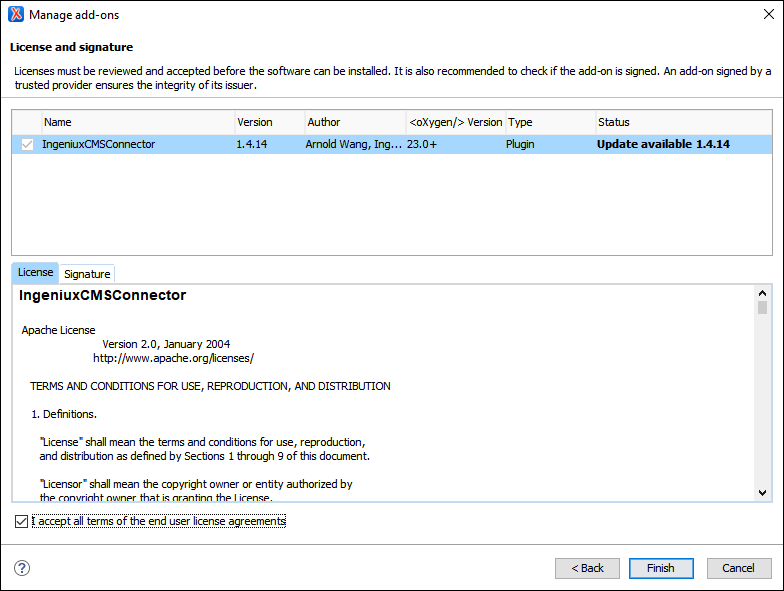
Task Troubleshooting: If you encounter errors or issues:
- Review the update installation steps to ensure you installed the connector update properly and with the correct plugin feed URL.
- Verify with a system administrator that the Oxygen Web Service is updated to the latest version compatible with your CMS version.
- If you still encounter errors, uninstall and reinstall the Ingeniux CMS Connector in Oxygen XML Editor.
- The connector will not connect to your CMS instance until you install Web Launcher or configure connection settings manually.
Next Steps (optional): Use the plugin tools to edit CMS DITA content within the Oxygen XML Editor application interface.
This section includes: