
Configure Fonto AI
Prerequisites:
- Users must have CMS administrator permissions to access Fonto Configuration settings.
- The Ingeniux AI Module must be installed and activated on your CMS before you can configure the Fonto AI Insert feature. See AI Module 2 Setup for details.
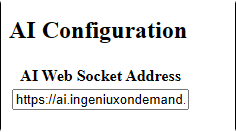
You can use generative AI to create and enhance content directly in Fonto. To enable the Fonto AI Insert feature for users, enter your AI Web Socket Address in Fonto Configuration settings.
To configure AI for Fonto:
- Enter the AI Web Socket Address
corresponding with your installed Ingeniux AI module version in the AI Configuration area:
https://ai2.ingeniuxondemand.comhttps://ai.ingeniuxondemand.com
Next Steps:
Verify the Fonto AI Insert feature is
functioning properly. You can do so by navigating to a DITA asset within the CMS, then
opening the topic's DITA Authoring tab. In the editor, click the
AI Insert button  in the toolbar.
Troubleshooting
- If the AI Insert button is inactive in Fonto, re-enter and save the AI Web Socket Address in your Fonto Configuration settings. If the button remains inactive, review the prerequisites to ensure the Ingeniux AI Module is activated and functional. If the issue persists, contact Ingeniux Support.
- If the AI Generated AI field displays an Error performing AI action: Incorrect API key provided message after you attempt to generate text in the AI Insert dialog, verify you entered the correct AI Web Socket Address for your Ingeniux AI module version. If you upgraded the AI module from v1 to v2, ensure the value matches the v2 address.