Replacing Site Instances via CMS 10.5–10.6 Site Wizard
Replacing a site merges a CMS site export into an existing IIS instance of the CMS application.
When a site replacement takes place, the following occurs:
- The existing CMS database merges with the new contents.
- The replacement overwrites matching items in the database and adds any new items.
- The export contents overwrite DSS Preview and upgrade to the wizard's software version.
- Select the appropriate size in the Batch Size drop-down
list.NoteThis field configures how many documents the system imports at once. Higher values speed up site creation but result in higher memory use. The wizard eventually imports all documents in the CMS export .zip file.
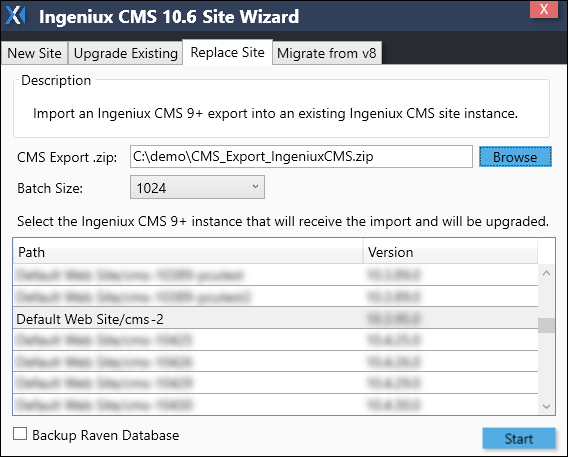
- Click Start and choose whether or not to rebuild the DSS Preview
Project.
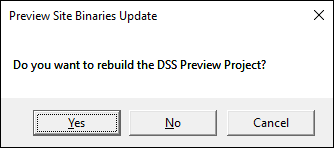 The Preview Site Binaries Update dialog closes, and the Ingeniux CMS Site Instance Setup Wizard Welcome dialog displays.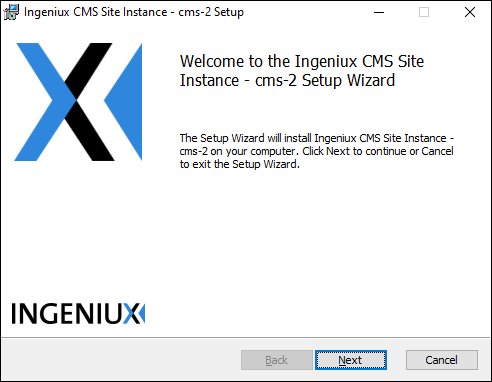
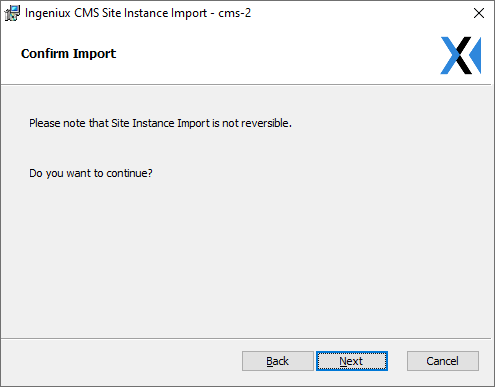
- Click Next.The Confirm Import screen displays.
- Follow the version note that matches your CMS replacement site version.
If you are using the CMS 10.5–10.6 Site Instance Wizard to replace a CMS 10.5 or CMS 10.6 site, the wizard advances to the Administrative User Configuration screen.
If you are using the CMS 10.6 Site Instance Wizard, the CMS already has RavenDB 5.2 installed.
If you are using the CMS 10.5 Site Instance Wizard, the CMS already has RavenDB 4.2 installed.
The Select RavenDB Location screen displays.
If you are using the CMS 10.6 Site Instance Wizard to replace a CMS 9–10.3 site, the Ingeniux CMS Site Wizard upgrades the database to Raven Database (RavenDB) 5.2.
If you are using the CMS 10.5 Site Instance Wizard to replace a CMS 9–10.3 site, the Ingeniux CMS Site Wizard upgrades the database to RavenDB 4.2.
See RavenDB Certificates to configure RavenDB and its security certificates. Return to this page for steps to complete the wizard.
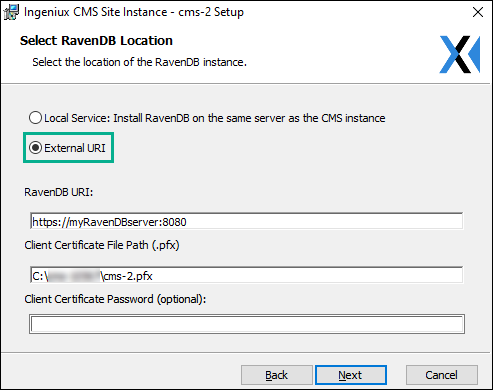
After completing the RavenDB location and certificate views, click Next to confirm your import settings.
The Administrative User Configuration dialog displays.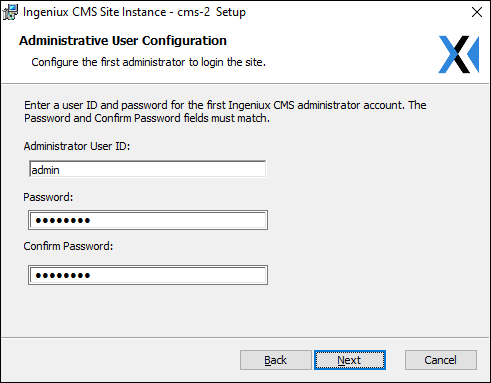
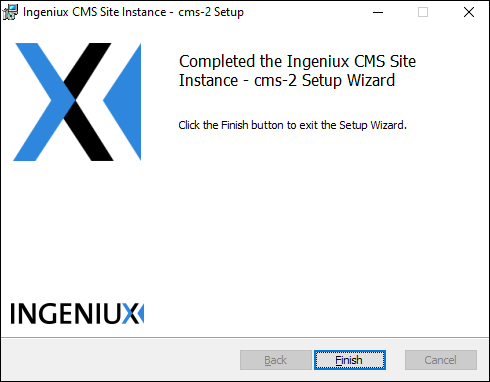
- When the instance replacement setup completes, click Finish.