
Configuring Email Notification Templates


The emailNotifications folder contains language and locale-specific email notification templates that developers can configure. Ingeniux CMS inserts the template into the email body.

To configure an email notification template:

  1. Navigate to [path-to-cms-site-instance]\site\App_Data\xml\Custom\emailNotifications and select the desired language and locale-specific folder.
    Tip
    For example, to configure the message for English-speaking recipients in the U.S., select the en-us folder.
  2. Open the template file you want to edit in a text editor:
    • workflowNotifications.xml: Controls the workflow notification email that the CMS sends when a content item or asset item advances in workflow.
    • newUserAccountEmailTemplate.xml: Controls the welcome email that the CMS sends to a new user account.
      Version Notes: CMS 10.6.492
      Template introduced in CMS 10.6.492.
    • passwordResetEmailTemplate.xml: Controls the password reset email that the CMS sends when a user requests a password reset.
      Version Notes: CMS 10.6.492
      Template introduced in CMS 10.6.492.

    Alternatively, edit the file in Visual Studio. Navigate to [path-to-cms-site-instance]\site\App_Data\xml\Custom and open Ingeniux_Extensions_Development.sln. Select the API_Extensions_Development_Harness project in Solution Explorer and navigate to the template in the emailNotifications\[name-of-language-and-locale]\ folder.

  3. Edit the text and variables in the file to best suit your organization's needs.

    Keep in mind the default file format differs, depending on your CMS version. See the default format associated with your version.

    CMS 10.6 default workflowNotifications.xml
    <?xml version="1.0" encoding="utf-8" ?>
    <EmailTemplate>
    	<Subject>%siteName% - %workflowName% Notification - %pageName% - %pageId%</Subject>
    	<Body>
    		<![CDATA[	
    		<p><strong>Workflow Notification</strong></p>
    		<p><em><a href="mailto:%workingUserEmail%">%workingUserName%</a> </em>advanced the item <em><a href="%siteUrl%/#/site/%pageId%">%pageName% (%pageId%)</a> </em>through the "<em>%transitionName%</em>" transition in the "<em>%workflowName%</em>" workflow, and assigned it to <em><a href="mailto:%nextUserEmail%">%nextUserName%</a></em></p>
    		<p> </p>
    		<p><strong>Comments from Assigning User:</strong>
    		<br /><em>%comments%</em></p>
    		<p> </p>
    		<p><strong>View Item:</strong><br/><a href="%siteUrl%?ID=%pageId%">%siteUrl%?ID=%pageId%</a></p>
    		]]>	
    	</Body>
    </EmailTemplate>
    CMS 10.0–10.5 default workflowNotifications.xml
    <?xml version="1.0" encoding="utf-8"?>
      <EmailTemplate>
      <Subject>%siteName% - %workflowName% Notification - %pageName% - %pageId%</Subject>
      <Body>
        <p><strong>Workflow Notification</strong></p>
        <p><em><a href="mailto:%workingUserEmail%">%workingUserName%</a> </em>advanced the item <em><a href="%siteUrl%/#/site/%pageId%">%pageName% 
        (%pageId%)</a> </em>through the "<em>%transitionName%</em>" transition in the "<em>%workflowName%</em>" workflow, and assigned it to <em><a 
        href="mailto:%nextUserEmail%">%nextUserName%</a></em></p>
        <p><strong>Comments from Assigning User:</strong>
        <br /><em>%comments%</em></p>
        <p><strong>View Item:</strong><br/><a href="%siteUrl%/#/site/%pageId%">%siteUrl%/#/site/%pageId%</a></p>
      </Body>
    </EmailTemplate>
  4. Save your changes to the template file.

Outcomes include:

For workflowNotifications.xml, when a content item advances in workflow, the CMS inserts your notification in the email body and sends the message to the next user or group in the workflow.

Example default message:

Workflow Notification Message in Email

For newUserAccountEmailTemplate.xml, when an administrator creates a new user account, the CMS inserts your notification into the email body and sends the message to the email address of the new user.

Example default message:

New User Account Notification Message in Email

For passwordResetEmailTemplate.xml, when an administrator creates a new user account or when password reset is triggered, the CMS inserts your notification in the email body and sends the message to user account holder.

Example default message:
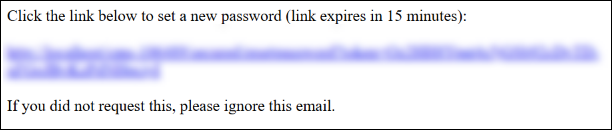
Password Reset Notification Message in Email

Next Steps:

Warning
If you upgrade your site, the default template file overwrites the existing email templates. To preserve your changes, we recommend to backup your template files prior to the CMS upgrade, then restore your customized templates after the upgrade completes.