
Configuring DITA Publishing
Use the Configure DITA Publishing dialog to define essential input DITA Open Toolkit (DITA-OT) parameters:
DITA map(s), that serve as a manifest of all content items bound for publishing such as DITA topics, reltables, etc.
Output formats for the publishing process.
- DITAVAL files for conditional profiling (optional).
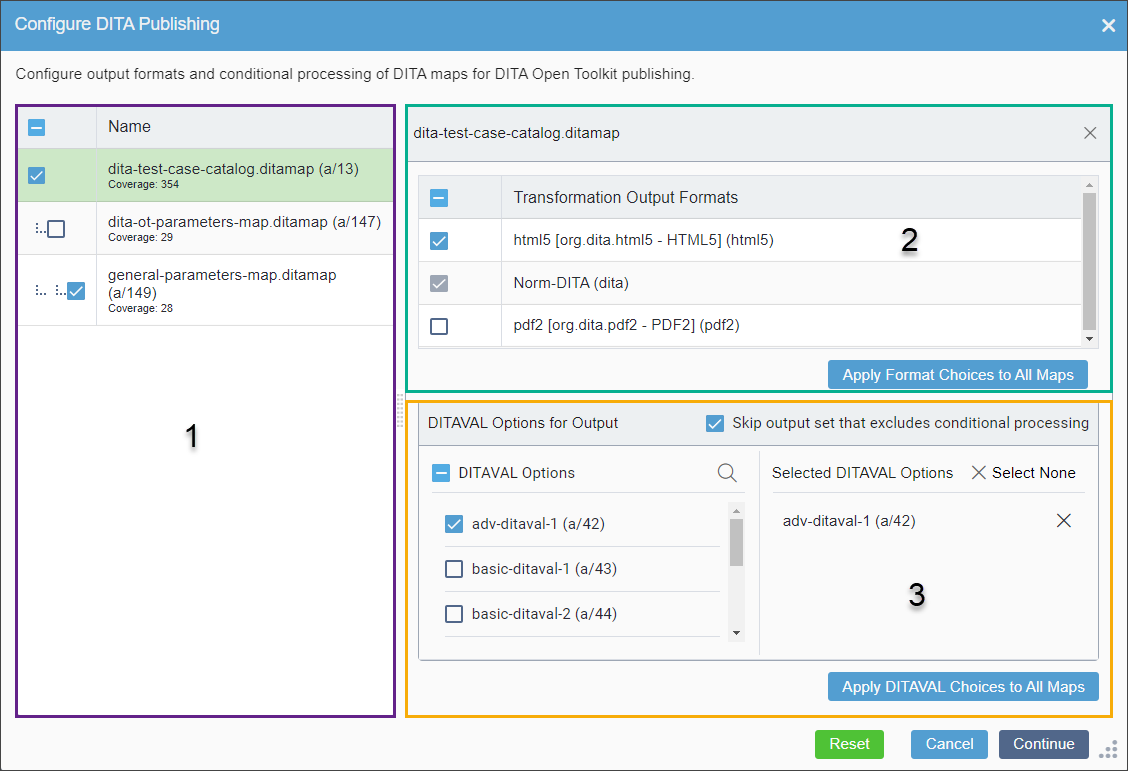
To configure DITA publishing:
- Select the DITA maps you want to use for DITA-OT processing in the leftmost
list (area 1).Note
Users typically select only one map for DITA publishing, even when parent maps exist. This approach applies your output format and DITAVAL selections exclusively to the current map without requiring map-by-map refinement of parent maps. To publish only the current map, select it and clear the checkboxes for all parent maps.
For special cases where ancestor maps require custom output format and DITAVAL combinations, or when you want to publish parent maps instead of the current map, enable the appropriate maps in the parent hierarchy.
- When you include or exclude parent maps in the hierarchy view, the dialog hides the output format and DITAVAL configuration areas. Click each selected map individually to view and modify its available options. This ensures you know which map you are configuring at any time.
- Select the output formats you want for the map in the
Transformation Output Formats list (area 2).
To apply the same output formats to multiple selected maps from the parent hierarchy, click Apply Formats Choices to All Maps.
Version Notes: CMS 10.6.491The CMS automatically selects the normalization output format for all maps. Users cannot modify this setting. - Optional: Select DITAVALs to apply to the map from the left DITAVAL
Options list in DITAVAL Options for Output (area
3).Version Notes: CMS 10.6.492 vs. CMS 10.6.308–10.6.378
CMS 10.6.492: The Skip output set that excludes conditional processing checkbox is unavailable in CMS 10.6.492. The CMS automatically applies DITA publishing pipeline processing to the map, outputting the normalized, conditionally processed rendition of the map and its dependencies to the main normalized DITA root folder path. This output uses only DITAVALs referenced directly within the map and not optional DITAVAL selections from the dialog.
When you apply optional DITAVALs through the dialog, the CMS outputs normalized, conditionally processed content to unique DITAVAL paths for each selected optional DITAVAL.
CMS 10.6.308–10.6.378: By default, the Skip output set that excludes conditional processing checkbox is selected.
When you select this checkbox, the following occurs:
- The CMS applies DITA publishing pipeline processing to the map, outputting normalized, conditionally processed content to unique DITAVAL paths in the published output folder.
- Additionally, the map and its dependencies are published the main DITA root path in the published folder without undergoing DITA publishing pipeline processing. This output is not normalized or conditionally processed.
When you clear this checkbox, the following occurs:
- The CMS applies DITA publishing pipeline processing to the map, outputting the normalized conditionally processed content to unique DITAVAL paths in the published folder.
- The DITA publishing pipeline also outputs a normalized, conditionally processed rendition of the map and its dependencies to the main DITA root folder path in the published folder. This rendition is based solely on the DITAVALs referenced directly within the map and not any other DITAVAL options selected in the dialog.
Only DITAVALs marked to the publishing target display in the DITAVAL Options list. However, DITAVALs referenced in the map using
<ditavalref>are selected automatically, regardless of their publish marking. This setting cannot be changed.To apply the same DITAVAL option configurations to multiple maps in the parent hierarchy, click Apply DITAVAL choices to all maps.
Version Notes: CMS 10.6.42The Apply DITAVAL choices to all maps button applies only configurable DITAVAL option settings to other maps.Selected DITAVALs display in the right Selected DITAVAL Options list. The DITA publishing pipeline generates a separate conditionally processed output for each DITAVAL option you select.
- Click Continue.The Published Submitted dialog displays.TroubleshootingIf an error displays indicating unmarked dependencies for publish, mark the dependencies listed in the error message to the publishing target, or remove the dependencies from the dependency structure. Publishing will not start until all map dependencies are marked for publish.
See DITA Publish Unmarked Dependency Error for details.
- Optional: Click Monitor Publish in the Published Submitted dialog to monitor the publish operation in
real time.See Accessing DITA Publish and Preview Logs for details about monitoring your DITA publish.
Task Troubleshooting: If all prerequisites are in place and you experience DITA publishing issues, see
Troubleshooting DITA Collections for solutions.