
Adding Custom Controllers


Developers can create and configure custom controllers to pass queries to the model and incorporate their own custom methods for calling views based on user input.

After adding the controller to the DSS or DSS Preview solution, add the corresponding views. To test that the custom controller and views function properly, preview or publish a page that uses the schema associated with the view.

Creating a custom controller is beneficial in scenarios where views require custom actions to occur outside the standard functionality of the default controllers. For example, a FormSubmission view might use a custom FormController to handle user-submitted data. If you want to override methods from the default controllers, we recommend creating a custom base controller to maintain a clear distinction between product-provided code and custom code.

To implement a basic custom controller, follow these steps:

  1. Add Custom Controller
  2. Add View
  3. Optional: Enable BaseControllerName App Setting
  4. Test Custom Controller and View

Add Custom Controller

Create a basic controller in the DSS or DSS Preview solution, then further customize the controller to suit your needs and preferences.

To add a basic custom controller:
  1. Open your DSS or DSS Preview solution in Visual Studio.
  2. Right-click the Controllers folder in the Solution Explorer pane, then click Add > Controller in the context menu.
  3. Select the MVC 5 Controller - Empty option, then click Add in the Add New Scaffolded Item dialog.
    Note
    Alternatively, you can create a copy of CMSPageDefaultController.cs and rename the file.
  4. Enter the file name for your new controller (e.g., CustomController), then click Add in the Add Controller dialog.

    Ensure the file name includes the word "controller" at the end, and treat this file as case sensitive.

    The new controller displays in Visual Studio.
  5. Make the following code changes to the controller:
    1. Ensure the namespace is Ingeniux.Runtime.Controllers.
    2. Replace Controller with CMSPageDefaultController in the public class. This allows your custom controller to inherit methods and other code from the CMSPageDefaultController.cs file.
      Note
      In most cases, inheriting from the default CMS controller is required. However, in cases where inheriting from a different controller is necessary, specify the name of that controller in the public class.
    3. Remove the code nested within the public class body.

    For example, your custom controller will look similar to the following:

    Basic custom controller example
    using System;
    using System.Collections.Generic;
    using System.Linq;
    using System.Web;
    using System.Web.Mvc;
                  
    namespace Ingeniux.Runtime.Controllers
    {
        public class CustomController : CMSPageDefaultController
        {
    
        }
    }
  6. Save your custom controller file.
    Note
    If you plan to deploy or debug the solution, rebuild the solution beforehand to ensure the bin files are updated.

Add View

Add the view folder and file that will correspond with your new custom controller.

To add the view folder and view file:
  1. Expand the Views folder in the Solution Explorer pane to verify Visual Studio created a folder that shares the same name as your custom controller.

    For example, the corresponding views folder of CMSPageDefaultContoller.cs is CMSPageDefault. If your custom controller is named CustomController.cs, the corresponding view folder will be named Custom.

    Visual Studio automatically generates the corresponding folder after adding the custom controller. The matching of names ensures the controller and folder work together seamlessly within in the solution.

    Troubleshooting
    If Visual Studio does not generate the corresponding folder, right-click the Views folder, then click Add > New Folder in the context menu to create the folder. Follow the naming convention the example indicates, with case sensitivity in mind.
  2. Right-click the folder that corresponds with your custom controller, then click Add > View in the context menu.
  3. Select the MVC 5 View option, then click Add in the Add New Scaffolded Item dialog.
  4. Enter the name of the parent folder (e.g., Custom) in the View Name field, then click Add.
    Visual Studio adds the view to the folder. The view name (e.g., Custom.cshtml) will be the same as the corresponding custom controller and parent folder.
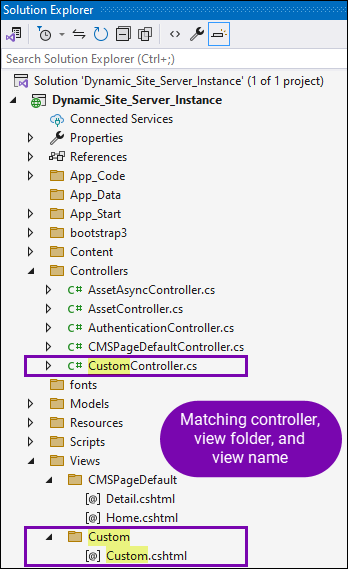
    Matching Custom Controller, View Folder, and View File Names

  5. Modify the new custom view to suit your needs, then save the file.

    For example, you can copy and paste the code below into your view.

    For the purposes of creating a test custom controller example, you can leave this code as is or use this as a starting point to make further modifications.

    This example uses the same layout as the one we use for CMSPageDefault views.

    @model Ingeniux.Runtime.CMSPageRequest
    @using Ingeniux.Runtime
    @{
        Layout = "~/Views/Shared/_Layout.cshtml";
    
        <h1>This is the Custom view</h1>
    }
    Important
    Each custom controller is limited to one view unless you configure the BaseControllerName app setting to specify the custom controller as the base controller.

Optional: Enable BaseControllerName App Setting

By default, the DSS and DSS Preview solutions treat CMSPageDefaultController.cs as the base controller, limiting the custom controller to only one view. This means the custom controller name and view folder namemust match in order for the custom controller to correspond with the view. Within the view folder, the views can have different names; they only need to match the corresponding schema names.

However, if you would like more flexibility outside the provided CMS Page Default controller methods, you can enable the BaseControllerName app setting. This setting allows you to specify a different controller as the base controller, giving you the flexibility to run custom code by default for all views within the associated view folder.

Caution
Configure this app setting with caution. If you enable this setting, the CMS Page Default controller can only correspond with one view folder. If multiple view folders correspond with the CMS Page Default controller while this setting is enabled, those view folders will no longer function properly. The controller and view folder name must match.
  1. Open the solution's Web.config file in a text editor.
  2. Under the <appSettings> element, add the following setting:
    <add key="BaseControllerName" value="Custom" />
  3. Specify the name of custom controller in @value attribute. This will serve as the base controller.

    For example, if the custom controller is named CustomController.cs, then enter Custom in the @value attribute.

  4. Save and close web.config.

Next Steps: After configuring this setting, you can add additional views to the view folder that corresponds with the custom controller.

Note
The custom controller and view folder must share the same name. However, the views under this folder can have different names.

Test Custom Controller and View

To ensure the custom controller and corresponding views function properly, test them by creating a page schema associated with the view. Use the new schema to create a page and either render the page in the Preview tab or publish the page to the DSS.

To test the custom controller and corresponding views:
  1. In the CMS, navigate to Administration > Schema Designer, then create a page schema with the exact same name as the view.

    For example, if the view file corresponding with your custom controller is Custom.cshtml, then name your schema Custom.

    Important
    The view name and schema name are case sensitive.

    See Creating Page Schemas for details to create the schema.
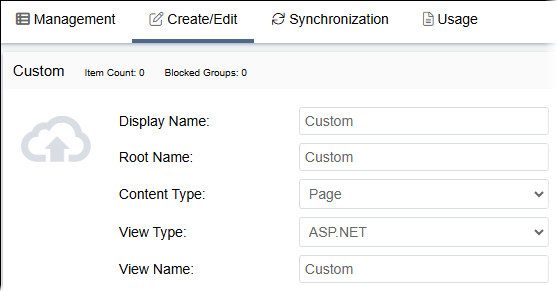
    Schema Associated with View

  2. Navigate to Site > Site Tree.
  3. Create a page based on the new schema, then check in the page.
  4. If you add the custom controller to your DSS Preview solution, complete the following steps:
    1. Click the page's Preview tab.
    2. Reload your browser to verify the view loads and functions as expected.
  5. If you add the custom controller to your DSS solution, complete the following steps:
    1. Mark for publish then publish the page to the DSS.

      See Publishing from the Site Tree for details to publish the page.

    2. In a new web browser tab, navigate to the page on the DSS to verify the view loads and functions as expected.

If the view file includes the example code from the Add View steps, you will see the <h1> content on the page.

Task Troubleshooting: If the views do not display as expected, reload your browser. If loading the view on your DSS, consider clearing the browser cache. To clear your cache in Google Chrome, press F12 on your keyboard to open the Developer Tools pane, then right-click the Reload button and select Empty Cache and Hard Reload.
If the views still do not display as expected, revisit the steps to create the custom controller and corresponding views. Double-check the following criteria:

  • Ensure your solution's NuGet packages are up to date.
  • Ensure the naming conventions of the controller, view(s), and schema(s) are consistent and case-sensitive.
  • After creating and configuring the custom controller, rebuild the solution.
  • Custom controllers can only correspond with one matching view.If multiple view folders correspond with the same controller, the views within those view folders will no longer function properly.
  • The controller name and view folder name are always required to share the same name, regardless of whether the BaseControllerName app setting is enabled. The BaseControllerName app setting determines which controller will be loaded by default for all requests. This setting does not affect naming conventions.
  • If the BaseControllerName app setting is enabled, the custom controller and view folder name must match.
Version Notes: CMS 10.6.308–10.6.378
In CMS 10.6.308–10.6.378, some pages may render incorrectly on the DSS when the corresponding views associate with multiple custom controllers and are not routed through them. In these scenarios, the page content may display as expanded XML without view formatting.

See CMS 10.6.308–10.6.378: DSS Page Rendering Conflicts Occur If View Corresponds with Multiple Custom Controllers for details.