
Edit Your Profile
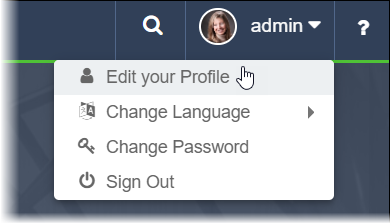
Access your profile settings by clicking the drop-down arrow in the top-right corner of the CMS, then select Edit your Profile.
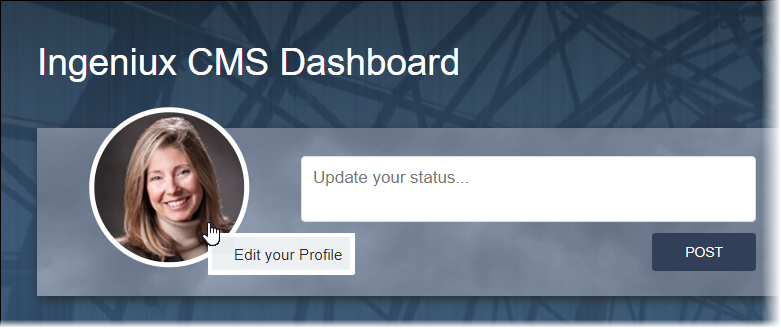
Alternatively, navigate to the Dashboard, move your cursor over your profile photo, then select Edit your Profile.
The Edit your Profile dialog provides options to edit Personal information, Dashboard display preferences, and Advanced settings.
- CMS 10.5+: The Edit your Profile dialog options display within the Personal, Dashboard, and Advanced tabs.
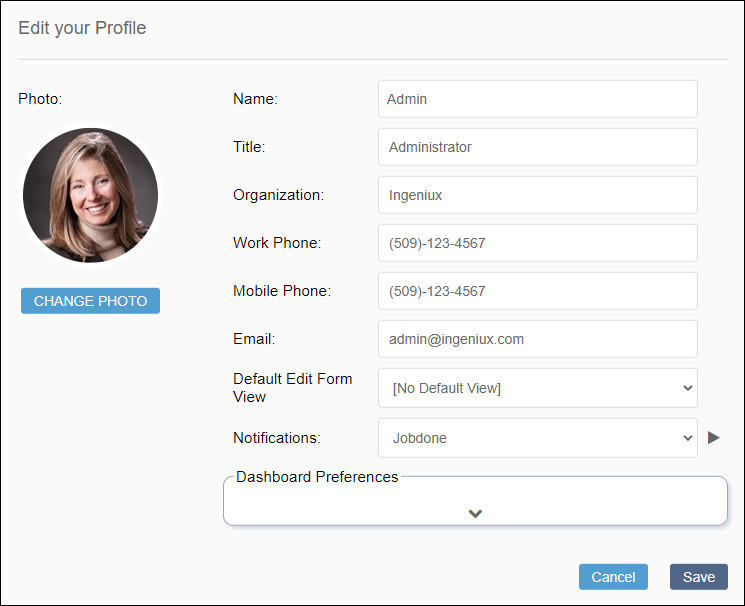
- CMS 10.0–10.3: The Edit your Profile dialog options display
within a single view.
Personal
Edit your profile information that other CMS users can view. This includes your name, title, organization, and contact information.
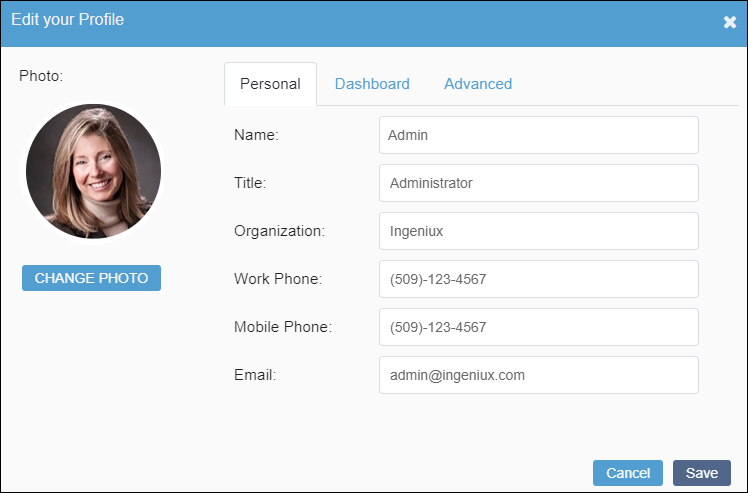
Personal information fields include:
- Name
- Your profile name (not user ID) identifies you within Ingeniux CMS. This name displays in your user profile, workflows, and dashboard.
- Title
- Your position title in the organization.
- Organization
- Your organization's title.
- Work Phone
- Your work phone number.
- Mobile Phone
- Your personal phone number.
- The email address associated with your CMS account. The CMS sends all notifications to this address.
- ImportantVerify your email address is correct before saving changes.
Dashboard
Control which features display on your Dashboard by selecting or clearing the checkbox for each feature.
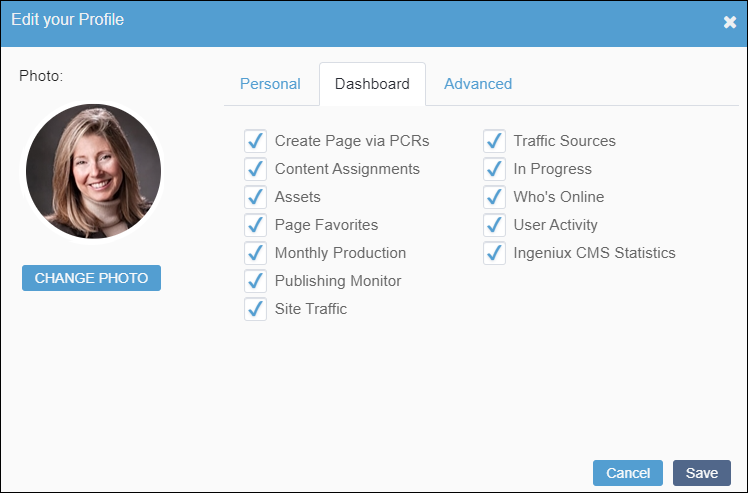
Dashboard features include:
- Create Page via PCRs
- Content Assignments
- Assets
- Page Favorites
- Monthly Production
- Publishing Monitor
- Site Traffic
- Traffic Sources
- In Progress
- Who's Online
- User Activity
- Ingeniux CMS Statistics
See Dashboard for details about these features.
Advanced
Manage CMS default editing view preferences, notification sounds, and specialized settings in the Advanced tab.
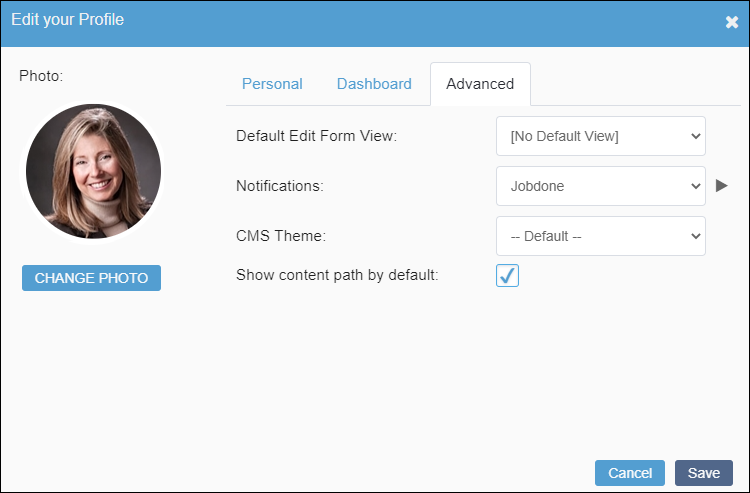
Advanced settings include:
- Default Edit Form View
- Set the default Edit tab view for Site Tree pages and components.
Options include:
- [No Default View]
- Index View
- Form View
- In-Context Edit View
- Notifications
Set a sound notification that plays when the Dashboard refreshes or when you log in.
Preview the selected sound by clicking the play icon ► next to the Notifications drop-down list.
- CMS Theme
- Version Notes: CMS 10.6Available in CMS 10.6 only. Select a color theme for your CMS user interface from the available options in the drop-down list.
Administrators can configure CMS theme options in Themes.
- Show content path by default
- Version Notes: CMS 10.5+Available in CMS 10.5+ only. When selected, this setting displays the full path for items in the Site Tree or Assets Tree. Setting cleared by default.
- Invoke DITA-OT in debug mode
- Version Notes: CMS 10.6Available in CMS 10.6 only. When selected, this setting activates debug mode for DITA pipeline publishes. This mode provides debugging information in DITA publishing logs and preserves temporary folders during DITA pipeline processes. Setting cleared by default.
- Disable keyboard shortcuts
- Version Notes: CMS 10.6.492Available in CMS 10.6.492 only. When selected, this setting disables all keyboard shortcuts in the CMS user interface. Setting cleared by default.
Profile Photo
Review your current profile photo in the Photo field. Click Change Photo to upload a new image.
See Change Profile Photo for details.
This section includes: