
Removing Maps
Use the Remove DITA Map button  in the Map Details tab toolbar to remove DITA map
collections.
in the Map Details tab toolbar to remove DITA map
collections.
- Click the View Details button directly to the left of the DITA
map you want to remove.
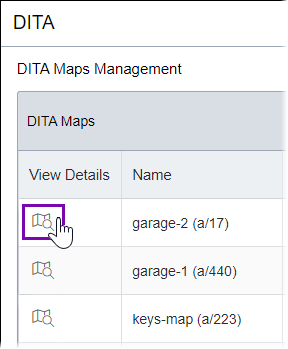 The Map Details tab displays.
 - Click the Remove DITA Map button in the Map Details toolbar.NoteIf the toolbar options do not display, click the hamburger drop-down menu
 to access them.
The CMS removes the DITA map and deletes all corresponding aliases. Map removal behavior varies by CMS version.
CMS 10.6.492 and CMS 10.6.308–10.6.342: The CMS moves the map and all its dependencies to the Assets Manager Recycle Folder. Asset folders that contained the removed DITA assets will remain as managed folders in the Asset Tree.
If you only want to delete the map and not its dependencies, right-click the map in the and click Delete in the context menu.
In the DITA Map Manager map list, all maps in the Recycle Folder display as dimmed. If you click a removed map in the list, the Map Details tab indicates DITA Map moved to Recycle Folder. To permanently delete the map and its dependencies from the Recycle Folder, see Deleting Assets.
CMS 10.6.378: The CMS permanently deletes only the DITA map but preserves its dependencies as managed assets in the Assets Manager. You cannot recover the map.
To alternatively move the map to the Recycle Folder, right-click the map in the then select Delete in the context menu.
Task Troubleshooting: The CMS prevents map removal if another DITA asset references the map you want to remove.
Before removing the map, either delete the referencing DITA asset or remove the map
reference from the asset. See Deleting Assets from DITA Collections.
CMS 10.6.492 and CMS 10.6.308–10.6.342 prevent map removal if the map references a dependency included in a separate map collection outside the deletion scope. Either delete the dependency reference from the map collection you want to remove or from the separate map collection you want to preserve.